White paper
ARCA: AI Root Cause Analysis.
-
Reading time 8 min
-
A study by

General description
The problem
When an operator is faced with an alarm that they are not familiar with, the best approach to the solution is to consult the official documentation. Retrieving these documents and consulting them may involve more than a simple text search because specific information is likely to be spread across multiple documents. In a typical scenario, the starting point is the instruction manual that describes the alarm code and the components that are causing it. The operator could then navigate to the electrical diagram, locate the components and check the connections. It could also be useful to consult the datasheet of the component. All these steps are straightforward, but time-consuming.
The vision
We wanted to design a tool that would ease the task of consulting the documentation when troubleshooting an unknown alarm. The solution needs to be:
- Easy to use;
- Official, meaning that it can only provide information contained in official IMA documents;
- Complete, in the sense that it should consult all the documents in the documentation package;
- Fully integrated in KORTEX HMI so the operator can always check machine status;
- Deployed on-premise and capable of working without an internet connection;
- Certain not to provide false information, a common side effect of AI applications (hallucinations).
IMA solution
The solution that has been developed is ARCA: AI Root Cause Analysis. The tool is activated when an alarm is raised with the goal of guiding the operator in the troubleshooting activities. ARCA has learned the correlations between all the documents in the official IMA documentation package, including datasheets from component suppliers. If properly configured, it can also include additional documentation from the customer, such as internal SOP. Once activated by the user, ARCA presents the most relevant documents related to the alarm under investigation, highlighting the pages with the most informative content.

| Figure 1: ARCA logo and acronym. |
Key features
Easy – the tool only uses documentation that is already included in the standard package. Moreover, it does not need direct maintenance.
Industrial – the tool is designed for pharmaceutical production plants. It is deployable directly on every IMA machine without the need for external connection. Integrated – ARCA is fully integrated in KORTEX with a series of dedicated pages to view and navigate the documentation without leaving the HMI.
Safe from hallucinations – AI is known to occasionally produce false results known as hallucinations. ARCA is not a chatbot nor does it produce new information.
It provides links to existing and 100% human-verified documentation. In case of hallucination the link may be inaccurate but not the underlying information.
Comprehensive database – the input of ARCA is the standard IMA documentation package. The documents used for troubleshooting are: the machine user manuals, electrical and pneumatic diagrams, product manuals such as datasheets from all the component suppliers, optionally and if configured properly, custom documents directly added by the client.
Description of operation
ARCA takes two inputs: the documentation root folder and the alarm code. Then it elaborates a chain of inferences:
- The alarm code is searched in the machine manual, providing a link to the section where it is described. Components may be identified with human readable texts such as “Film pump motor”.
- The component text is searched through the wiring diagram identifying the connection with the commercial code used in the diagram. At this stage, ARCA outputs all the pages of the diagram where each component is referenced.
- Knowing the commercial codes, the system searches the documentation folder for the datasheets. It outputs the path of each document.
- Finally, it searches the custom folder where the customer may have loaded additional documents such as internal SOP.
The overall output is condensed into a single JSON file containing all references of documents and pages discovered during the chain of inference. When invoked via the HMI, a dedicated page parses the JSON file and allows the user to view the referenced documents, with bookmarks to jump to the relevant pages.
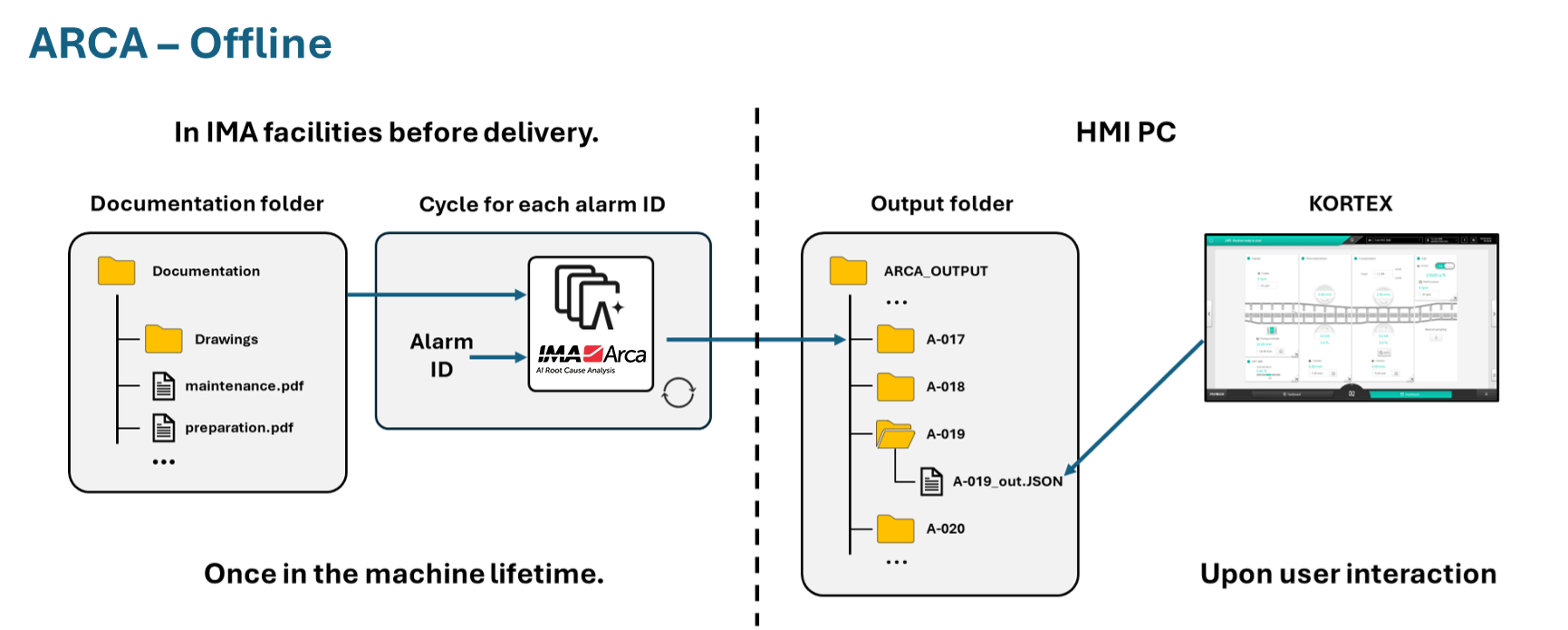
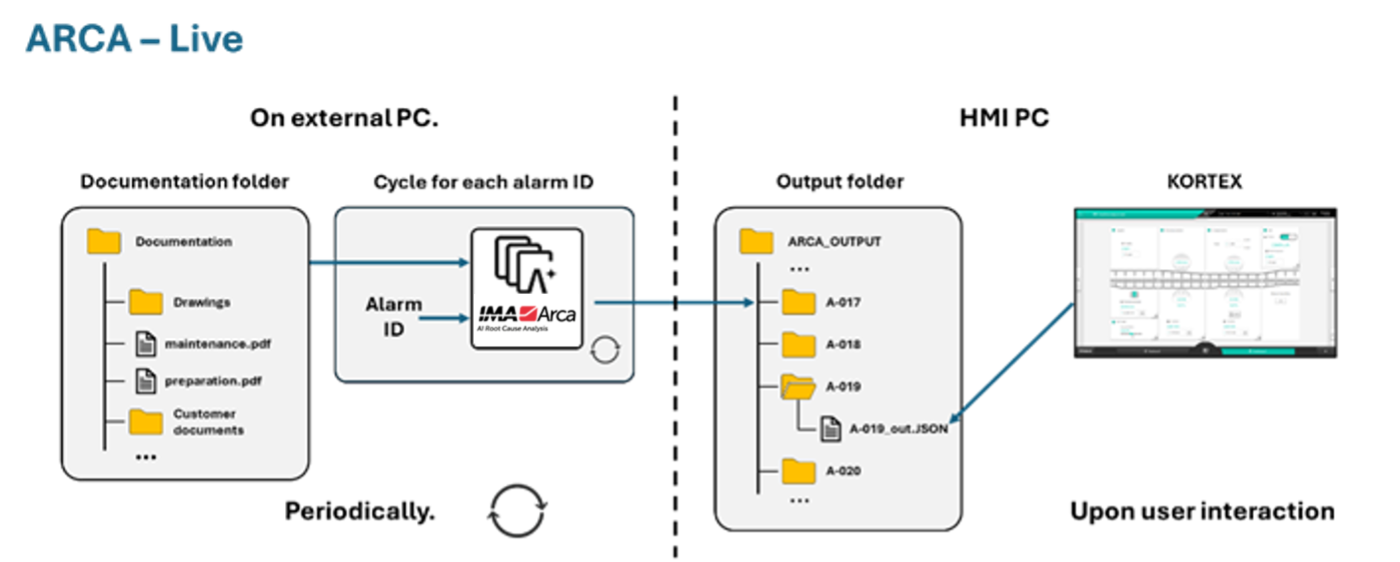
The whole system can be deployed in two versions: offline or live with external PC.
Offline version
In the offline version, all alarms have been pre-elaborated by IMA and loaded into the HMI PC. The machine comes with all the JSON files (one per possible machine alarm) and all the IMA standard documentation. ARCA can be accessed via the HMI from any alarms. The only limitation of this version is that the documentation and the outputs are frozen in time at machine delivery. It is thus not possible for the customer to include additional documents and get them referenced by ARCA.
Moreover, if the documentation of the machine gets updated, the whole set of outputs should be recalculated on IMA’s side and re-uploaded.
Live version with external PC
On the contrary, the live version features a dedicated external PC that periodically scans the documentation and updates the JSON files. If the customer adds new documents, they will be available in ARCA at the next scan cycle.
Appearance in HMI
The dedicated HMI page can be reached in two ways:
- The user can click on the new top-left corner button. ARCA will be invoked for the priority alarm.

Figure 5: detail of the HMI top bar. The top-left corner features a new button that is the entry point of ARCA when looking for info on the priority alarm (#147 in this example).
- If the user is interested in an alarm other than the priority one, they can open the alarm table, select the desired row and click on the ARCA button on the bottom.
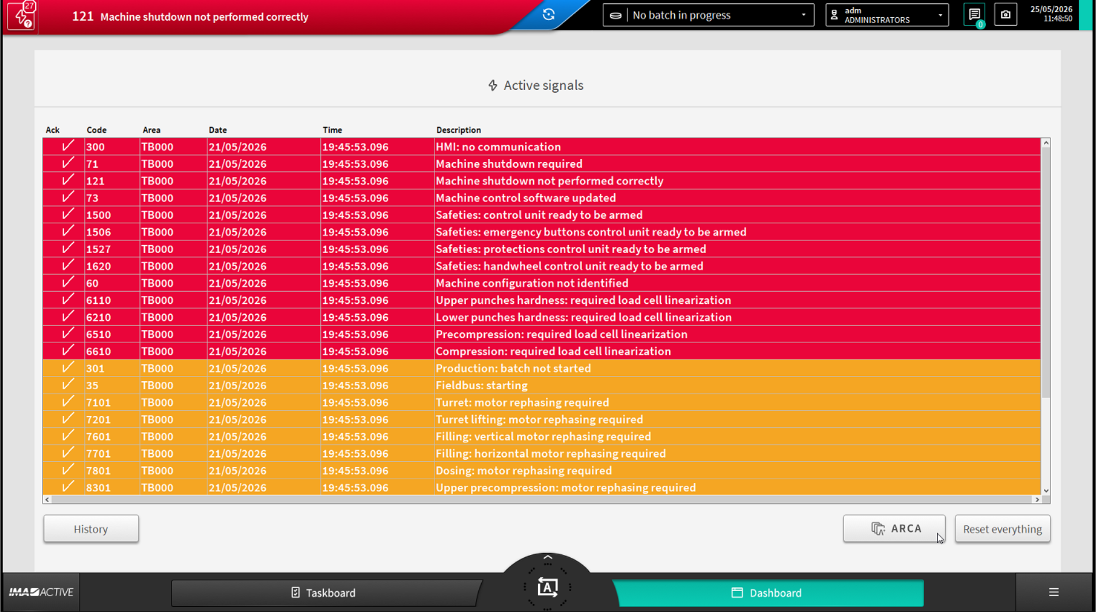
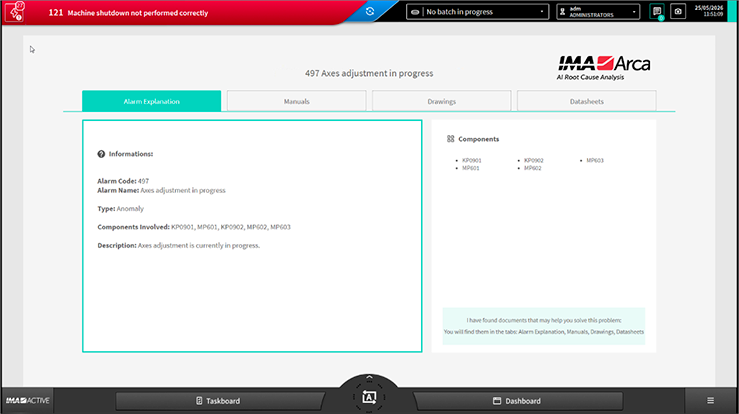
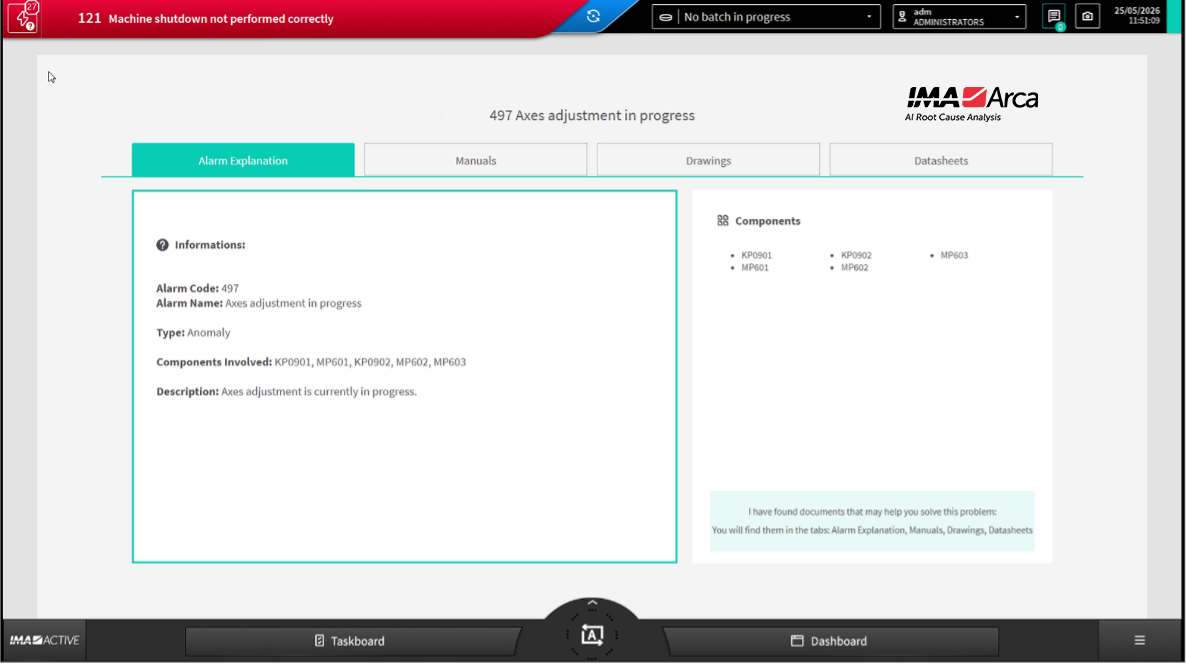
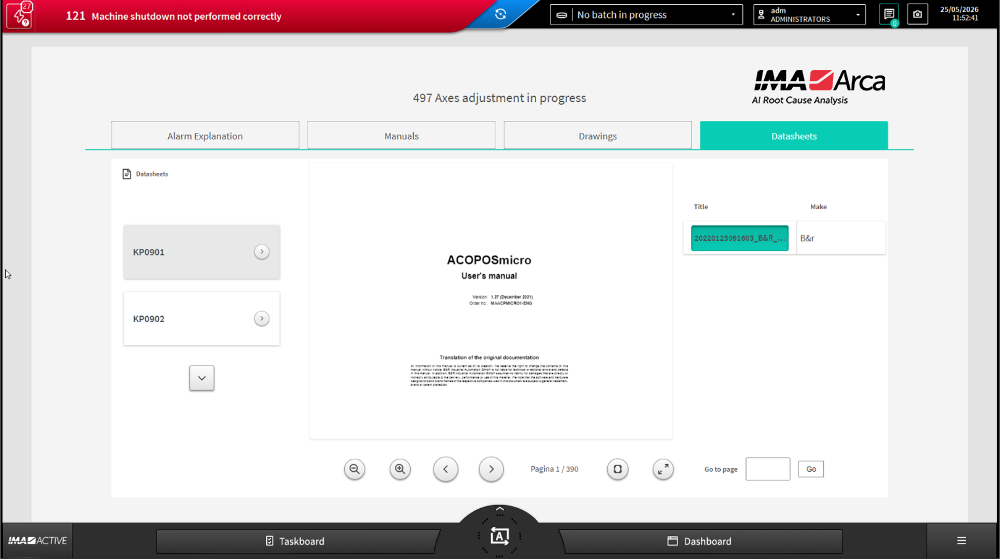
The HMI page of ARCA is organised in tabs, with the alarm under investigation clearly visible at the centre of the screen. The page opens on the “Alarm Explanation” tab that contains a general description of the alarm and its causes in the left section, plus a list of related component codes in the section on the right.
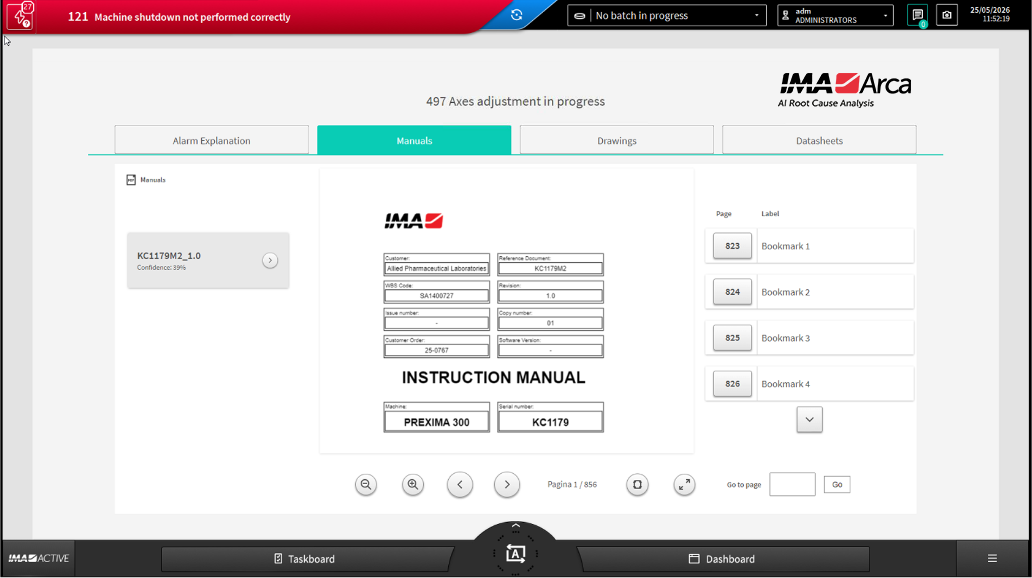
The second tab is dedicated to browsing the machine manuals. On the left, there is a list of manuals that contain relevant information on the alarm under investigation. If more than one document is found, the system orders them by confidence level, displaying the document with the highest confidence at the top. On the right is a set of bookmarks specific for the alarm; they help the user to navigate the document to the pages with the most relevant content. The central part contains the viewer itself together with the most common navigation buttons (such as zoom in, zoom out, previous and next page, fit zoom to full page).
There is also a button to open the viewer in full screen mode to better help the user in reading the document.
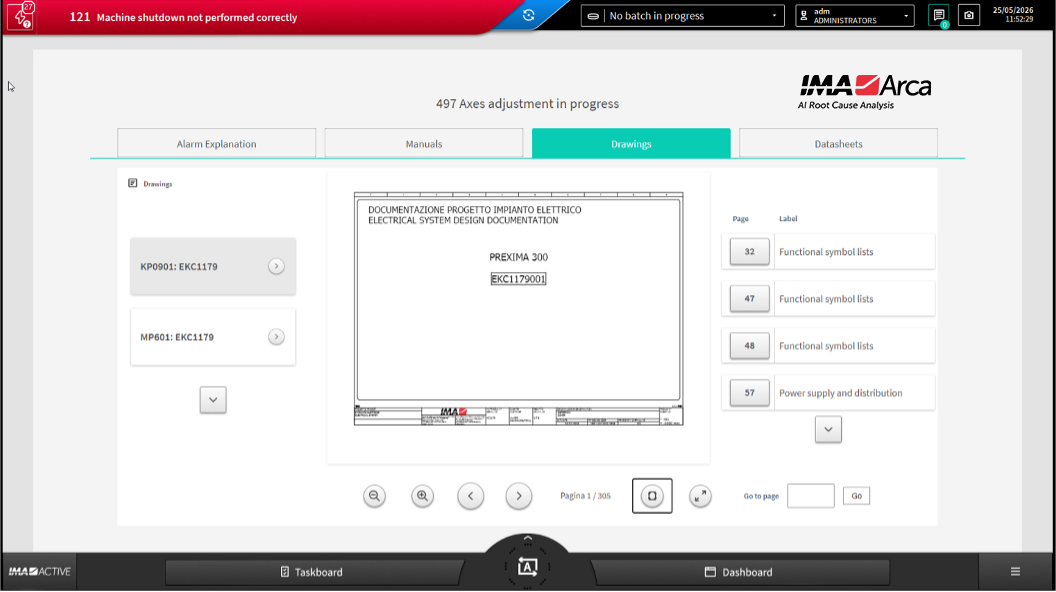
The third tab is related to technical drawings such as electrical or pneumatic drawings. The structure is identical to the “Manuals” tab with a document list on the left, a bookmark list on the right and the viewer in the centre.
Similarly, the last tab is dedicated to Datasheets and, if present, custom documents. The left part contains a list of the components related to the alarm. Customer documentation, if present and related to the alarm will appear here. Once an item is selected, the right part is populated with links to documents associated to the component (such as datasheet or other technical material). As previously, the central part contains the document viewer itself.
White paper
Effervescent tablet processing and packaging: why integrated lines are shaping the future.
6 min
Brands: IMA S.p.A. – Active Division, IMA Active
6 min
Brands: IMA Active, IMA S.p.A. – Active Division
11 min
5 min
Brands: IMA Active, IMA S.p.A. – Active Division
Case study
AMIX Nutrition and IMA Active: technological evolution supporting next generation sports nutrition.
5 min
Brands: IMA Active, IMA S.p.A. – Active Division
6 min
Brands: IMA Active, IMA S.p.A. – Active Division
13 min
Brands: IMA S.p.A. – Active Division, IMA Active
White paper
Sustainability benefits of Near-Infrared (NIR) integrated powder blending in pharmaceutical manufacturing.
7 min
Brands: IMA Active, IMA S.p.A. – Active Division
5 min
Brands: IMA S.p.A. – Active Division, IMA Active
7 min
Brands: IMA S.p.A. – Active Division, IMA Active
7 min
Brands: IMA Active, IMA S.p.A. – Active Division
6 min
Brands: IMA S.p.A. – Active Division, IMA Active
12 min
Brands: IMA S.p.A. – Active Division
11 min
Brands: IMA Active, IMA S.p.A. – Active Division
8 min
Brands: IMA Active, IMA S.p.A. – Active Division
11 min
Brands: IMA Active, IMA S.p.A. – Active Division
Case study
Vitabalans Oy chooses PREXIMA.
4 min
Brands: IMA Active, IMA S.p.A. – Active Division
White paper
The Energy Diary: powering sustainability.
6 min
Brands: IMA Active, IMA S.p.A. – Active Division
10 min
Brands: IMA Active, IMA S.p.A. – Active Division
4 min
Brands: IMA Active, IMA North America Inc. – Thomas Division, IMA S.p.A. – Active Division
12 min
Brands: IMA Active, IMA S.p.A. – Active Division
8 min
Brands: IMA S.p.A. – Active Division, IMA Active
10 min
Brands: IMA S.p.A. – Active Division, IMA Active
10 min
Brands: IMA Active, IMA S.p.A. – Active Division
14 min
Brands: IMA Active, IMA S.p.A. – Active Division
6 min
Brands: IMA S.p.A. – Active Division, IMA Active
11 min
Brands: IMA S.p.A. – Active Division, IMA Active
6 min
Brands: IMA S.p.A. – Active Division, IMA Active
14 min
Brands: IMA S.p.A. – Active Division, IMA Active
15 min
Brands: IMA S.p.A. – Active Division, IMA Active
10 min
Brands: IMA S.p.A. – Active Division, IMA Active
17 min
Brands: IMA S.p.A. – Active Division, IMA Active
12 min
Brands: IMA S.p.A. – Active Division, IMA Active
13 min
Brands: IMA Active, IMA S.p.A. – Active Division
11 min
Brands: IMA Active, IMA S.p.A. – Active Division
11 min
Brands: IMA Active, IMA S.p.A. – Active Division
White paper
Influence of material and capsule filling process with Minima on aerosolization performances by DPIs.
12 min
Brands: IMA Active, IMA S.p.A. – Active Division
10 min
Brands: IMA Active, IMA S.p.A. – Active Division
6 min
Brands: IMA S.p.A. – Active Division, IMA Active
Case study
Algorithm: «Why we choose IMA».
3 min
Brands: IMA Active, IMA S.p.A. – Active Division
Case study
Tablets: the importance of uniform coating.
6 min
Brands: IMA Active, IMA S.p.A. – Active Division
7 min
Brands: IMA S.p.A. – Active Division, IMA Active
4 min
Brands: IMA S.p.A. – Active Division, IMA Active
Case study
Mastering tablet manufacturing: how segment tools improve productivity, efficiency and consistency.
7 min
Brands: IMA Active, IMA S.p.A. – Active Division
34 min
Brands: IMA Active, IMA S.p.A. – Active Division
8 min
Brands: IMA Active, IMA S.p.A. – Active Division
2 min
Brands: IMA Active, IMA S.p.A. – Active Division
11 min
Brands: IMA Active, IMA S.p.A. – Active Division
White paper
Comparison of minitablets and pellets as multiparticulate drug delivery systems for controlled drug release.
24 min
Brands: IMA Active, IMA S.p.A. – Active Division
Case study
Lubricant sensitivity of direct compression grades of lactose in continuous batch tableting process.
33 min
Brands: IMA Active, IMA S.p.A. – Active Division
5 min
Brands: IMA Active, IMA S.p.A. – Active Division
5 min
Brands: IMA Active, IMA S.p.A. – Active Division
5 min
Brands: IMA Active, IMA S.p.A. – Active Division
5 min
Brands: IMA Active, IMA S.p.A. – Active Division
9 min
Brands: IMA Active, IMA S.p.A. – Active Division
5 min
Brands: IMA Active, IMA S.p.A. – Active Division
White paper
New solutions for nutraceuticals.
5 min
Brands: IMA Active, IMA S.p.A. – Active Division
8 min
Brands: IMA Active, IMA S.p.A. – Active Division
8 min
Brands: IMA Active, IMA S.p.A. – Active Division
8 min
Brands: IMA Active, IMA S.p.A. – Active Division
14 min
Brands: IMA Active, IMA S.p.A. – Active Division
7 min
Brands: IMA Active, IMA S.p.A. – Active Division
White paper
CROMA continuous coater: saving energy and process time by using high solids coating material.
7 min
Brands: IMA Active, IMA S.p.A. – Active Division
7 min
Brands: IMA Active, IMA S.p.A. – Active Division

7 min
Brands: IMA Active, IMA S.p.A. – Active Division
Case study
Application of acrylic enteric coating directly on soft gelatine capsules using a GS coating pan.
6 min
Brands: IMA Active, IMA S.p.A. – Active Division
6 min
Brands: IMA Active, IMA S.p.A. – Active Division
11 min
Brands: IMA Active, IMA S.p.A. – Active Division
12 min
Brands: IMA Active, IMA S.p.A. – Active Division
9 min
Brands: IMA Active, IMA S.p.A. – Active Division
6 min
Brands: IMA Active, IMA S.p.A. – Active Division
5 min
Brands: IMA Active, IMA S.p.A. – Active Division

8 min
Brands: IMA Active, IMA S.p.A. – Active Division
Case study
Formulation development of Vitamin C based effervescent blend suitable for direct compression.
9 min
Brands: IMA Active, IMA S.p.A. – Active Division

5 min
Brands: , IMA S.p.A. – Coffee Division, Petroncini Impianti S.p.A.
8 min
Brands: IMA Active, IMA S.p.A. – Active Division
7 min
Brands: IMA Active, IMA S.p.A. – Active Division
7 min
Brands: IMA Active, IMA S.p.A. – Active Division
13 min
Brands: IMA Active, IMA S.p.A. – Active Division
White paper
Autoregulation function on DOMINA tablet press.
5 min
Brands: IMA Active, IMA S.p.A. – Active Division
White paper
The potential of CROMA continuous coater.
9 min
Brands: IMA Active, IMA S.p.A. – Active Division
White paper
Perfima Extra: your way to boost productivity keeping process quality at the highest standard.
4 min
Brands: IMA Active, IMA S.p.A. – Active Division
9 min
Brands: IMA S.p.A. – Active Division, IMA Active
10 min
Brands: IMA Active, IMA S.p.A. – Active Division
7 min
Brands: IMA Active, IMA S.p.A. – Active Division
5 min
Brands: IMA Active, IMA S.p.A. – Active Division
10 min
Brands: IMA Active, IMA S.p.A. – Active Division
Case study
Power to the essential.
6 min
Brands: IMA Active, IMA S.p.A. – Active Division
6 min
Brands: IMA Active, IMA S.p.A. – Active Division
7 min
Brands: IMA Active, IMA S.p.A. – Active Division
5 min
Brands: IMA Active, IMA S.p.A. – Active Division
Case study
Much more than nutraceuticals.
6 min
Brands: IMA Active, IMA S.p.A. – Active Division
5 min
Brands: IMA Active, IMA S.p.A. – Active Division
White paper
Preliminary results of predictive maintenance algorithms on a tablet press production machine.
7 min
Brands: IMA Active, IMA S.p.A. – Active Division
White paper
The Prexima challenge. Comparison of rotary tablet presses seminar in Leverkusen (Germany).
8 min
Brands: IMA Active, IMA S.p.A. – Active Division
6 min
Brands: IMA Active, IMA S.p.A. – Active Division
Case study
Directly compressed minitablets coated in a solid wall pan for the sustained release of drugs.
6 min
Brands: IMA Active, IMA S.p.A. – Active Division
5 min
Brands: IMA Active, IMA S.p.A. – Active Division
7 min
Brands: IMA Active, IMA S.p.A. – Active Division
Case study
ARIA fluid bed granulator and MicroNIR
8 min
Brands: IMA Active, IMA S.p.A. – Active Division
Case study
CYCLOPS. Blending made by IMA.
5 min
Brands: IMA Active, IMA S.p.A. – Active Division
8 min
Brands: IMA Active, IMA S.p.A. – Active Division
7 min
Brands: IMA Active, IMA S.p.A. – Active Division
Case study
The IMA Group integrates OMAC PackML and invests in the future of machine connection and control.
8 min
Brands: IMA Active, IMA S.p.A. – Active Division
7 min
Brands: IMA Active, IMA S.p.A. – Active Division
White paper
How to perform a good scale-up.
6 min
Brands: IMA S.p.A. – Active Division, IMA Active
5 min
Brands: IMA Active, IMA S.p.A. – Active Division
Case study
Drug layering: the impact of up-scaling.
5 min
Brands: IMA Active, IMA S.p.A. – Active Division
5 min
Brands: IMA Active, IMA S.p.A. – Active Division
10 min
Brands: IMA Active, IMA S.p.A. – Active Division
15 min
Brands: IMA Active, IMA S.p.A. – Active Division
Case study
Scaling up a film coating process.
7 min
Brands: IMA Active, IMA S.p.A. – Active Division
White paper
Manufacturing DPIs: an engineering perspective
8 min
Brands: IMA Active, IMA S.p.A. – Active Division
White paper
Salty compression.
5 min
Brands: IMA Active, IMA S.p.A. – Active Division
5 min
Brands: IMA Active, IMA S.p.A. – Active Division
4 min
Brands: IMA Active, IMA S.p.A. – Active Division
6 min
Brands: IMA Active, IMA S.p.A. – Active Division
7 min
Brands: IMA Active, IMA S.p.A. – Active Division
6 min
Brands: IMA Active, IMA S.p.A. – Active Division
9 min
Brands: IMA Active
Case study
Tableting at its best.
5 min
Brands: IMA Active, IMA S.p.A. – Active Division
3 min
Brands: IMA Active, IMA S.p.A. – Active Division
7 min
Brands: IMA Active, IMA S.p.A. – Active Division
Case study
GlaxoSmithKline chooses PERFIMA.
5 min
Brands: IMA Active, IMA S.p.A. – Active Division
Case study
Design ad Hoc. Delpharm chose EFFECTA.
5 min
Brands: IMA Active, IMA S.p.A. – Active Division
Case study
Together again: Chinoin chooses IMA.
4 min
Brands: IMA Active, IMA S.p.A. – Active Division
4 min
Brands: IMA Active, IMA S.p.A. – Active Division
8 min
Brands: IMA Active, IMA S.p.A. – Active Division
7 min
Brands: IMA Active, IMA S.p.A. – Active Division
6 min
Brands: IMA Active, IMA S.p.A. – Active Division
7 min
Brands: IMA Active, IMA S.p.A. – Active Division
Case study
BMP: «PREXIMA fits all our needs».
4 min
Brands: IMA Active, IMA S.p.A. – Active Division
Case study
Fine Foods: «Why we choose IMA».
5 min
Brands: IMA Active, IMA S.p.A. – Active Division
5 min
Brands: IMA Active, IMA S.p.A. – Active Division
6 min
Brands: IMA Active, IMA S.p.A. – Active Division
Case study
Leading the way in micro-dosing DPIs.
6 min
Brands: IMA Active, IMA S.p.A. – Active Division